
 Other Git Provider
This article primarily discusses how to integrate code sources that support the standard Git protocol, including authentication using SSH Key and authentication using Access Token.
# SSH Key Authentication Method
# Step 1: Configure SSH Key
Configure the SSH public key in the corresponding code source. The operation path for this configuration varies depending on the code source. Please refer to the official documentation of the corresponding code source. The following is an example using GitHub as the code source.
- Generate an SSH public and private key pair using
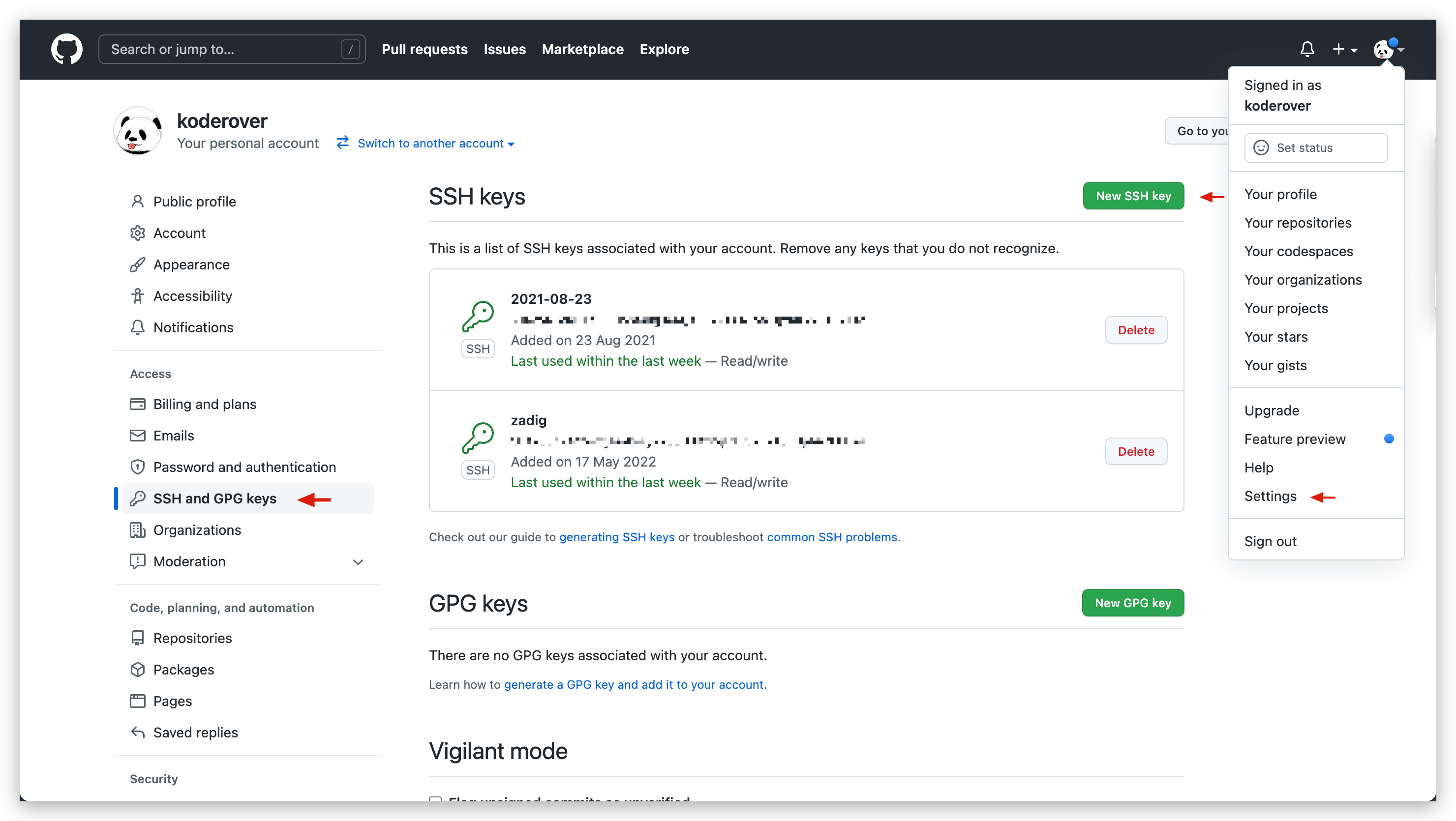
ssh-keygen -t rsa -C "your_email@example.com" - After logging into GitHub, click on the avatar in the upper right corner ->
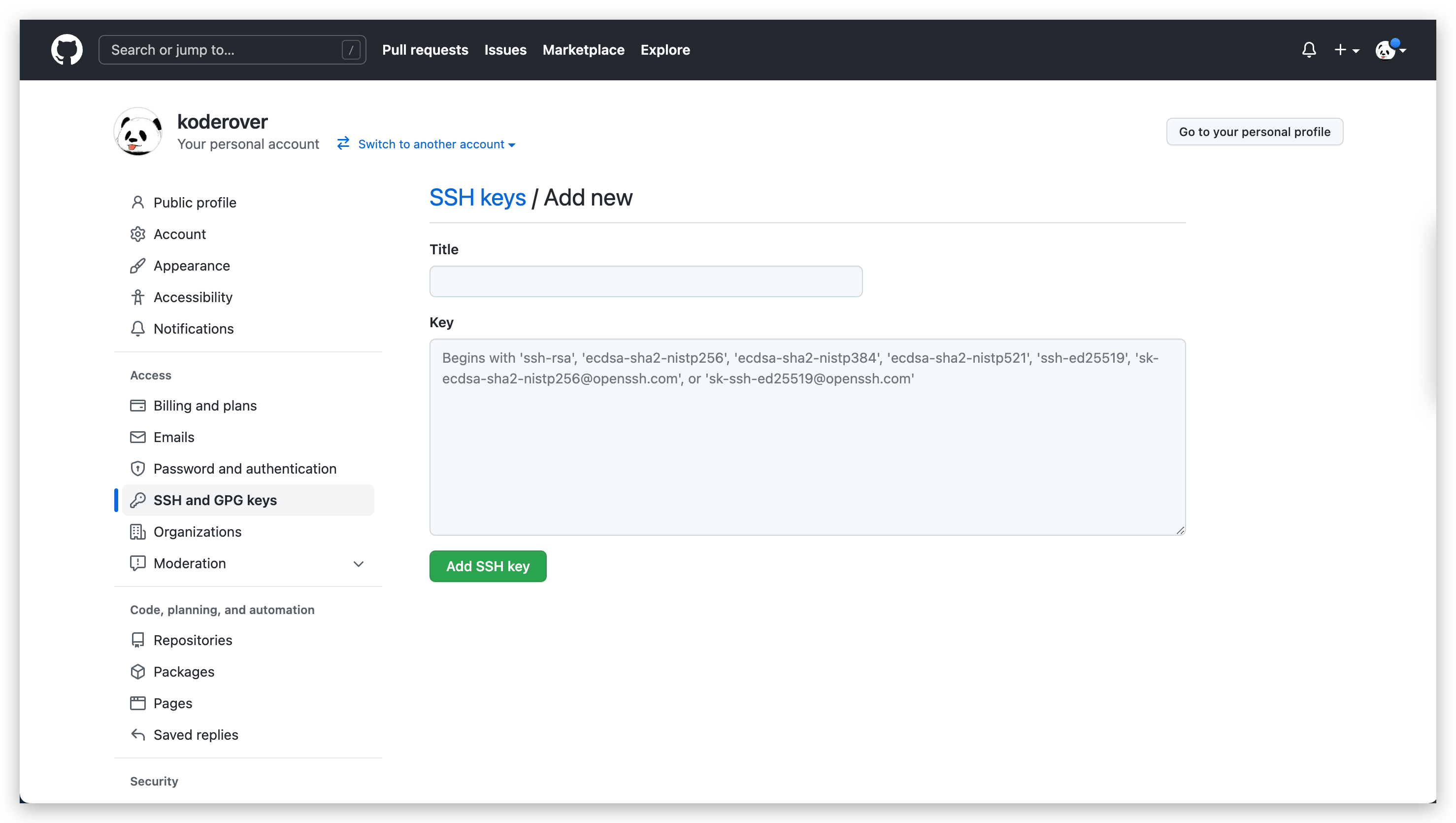
Settings->SSH and GPG keys->New SSH key, and then clickAdd SSH keyafter filling in the following information:Title: CustomKey: The public key information generated in the previous step, i.e., the content ofid_rsa.pub
# Step 2: Enter the Configuration in the Zadig System
An administrator should log into the Zadig system and go to System Settings → Integration → Git Provider → click the Add button.
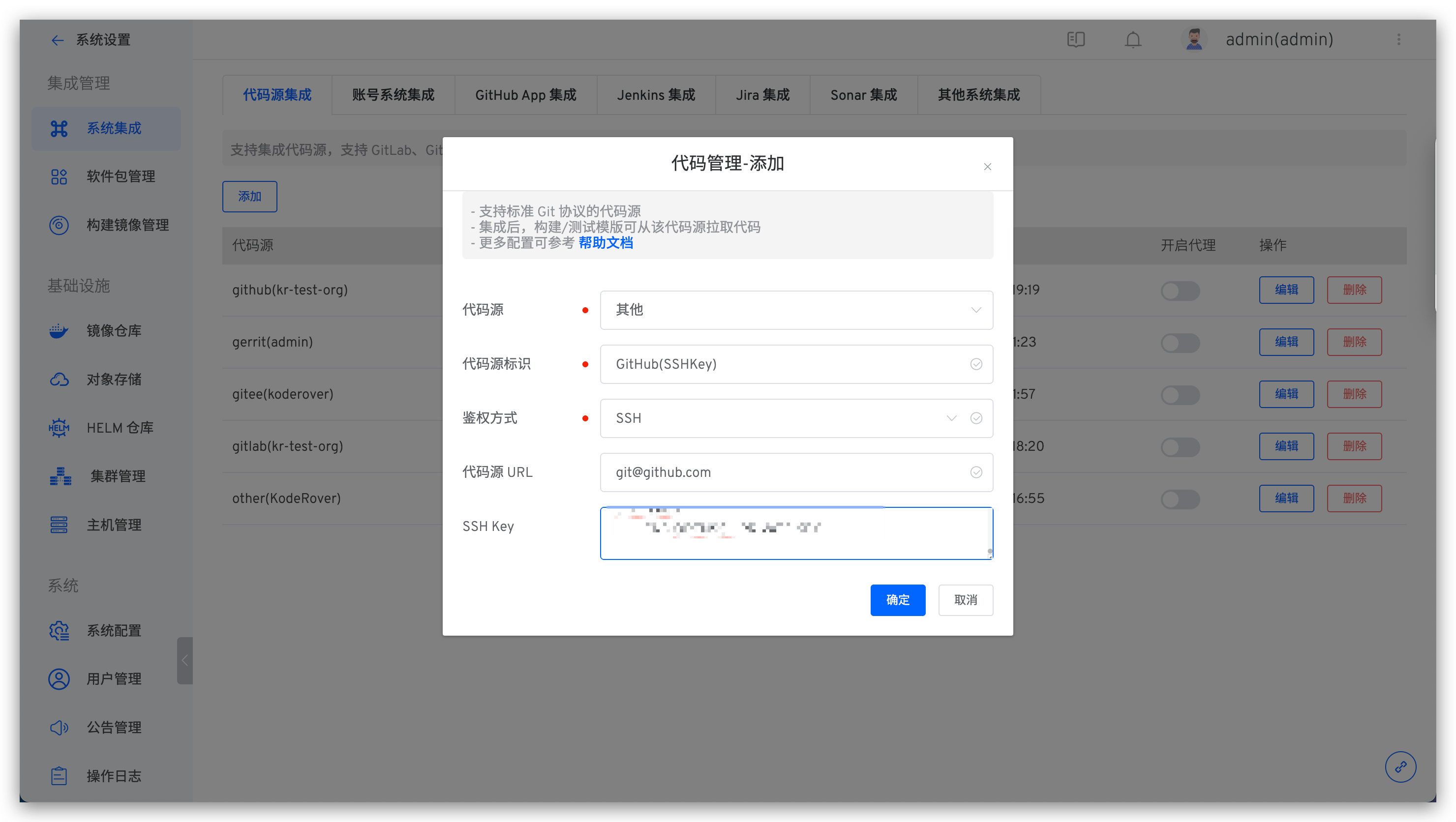
Fill in the following information in sequence:
Provider: SelectOtherAlias: Customize to help quickly identify the code source within the Zadig system. This information must be unique within the entire systemAuth Method: SelectSSH KeyProvider URL: Enter the corresponding code source address, such asgit@github.comSSH Key: Go to the directory where the key pair was generated in Step 1, and then execute the following command to copy and paste it into the input box here
cat id_rsa | pbcopy
# Access Token Authentication Method
# Step 1: Obtain Access Token
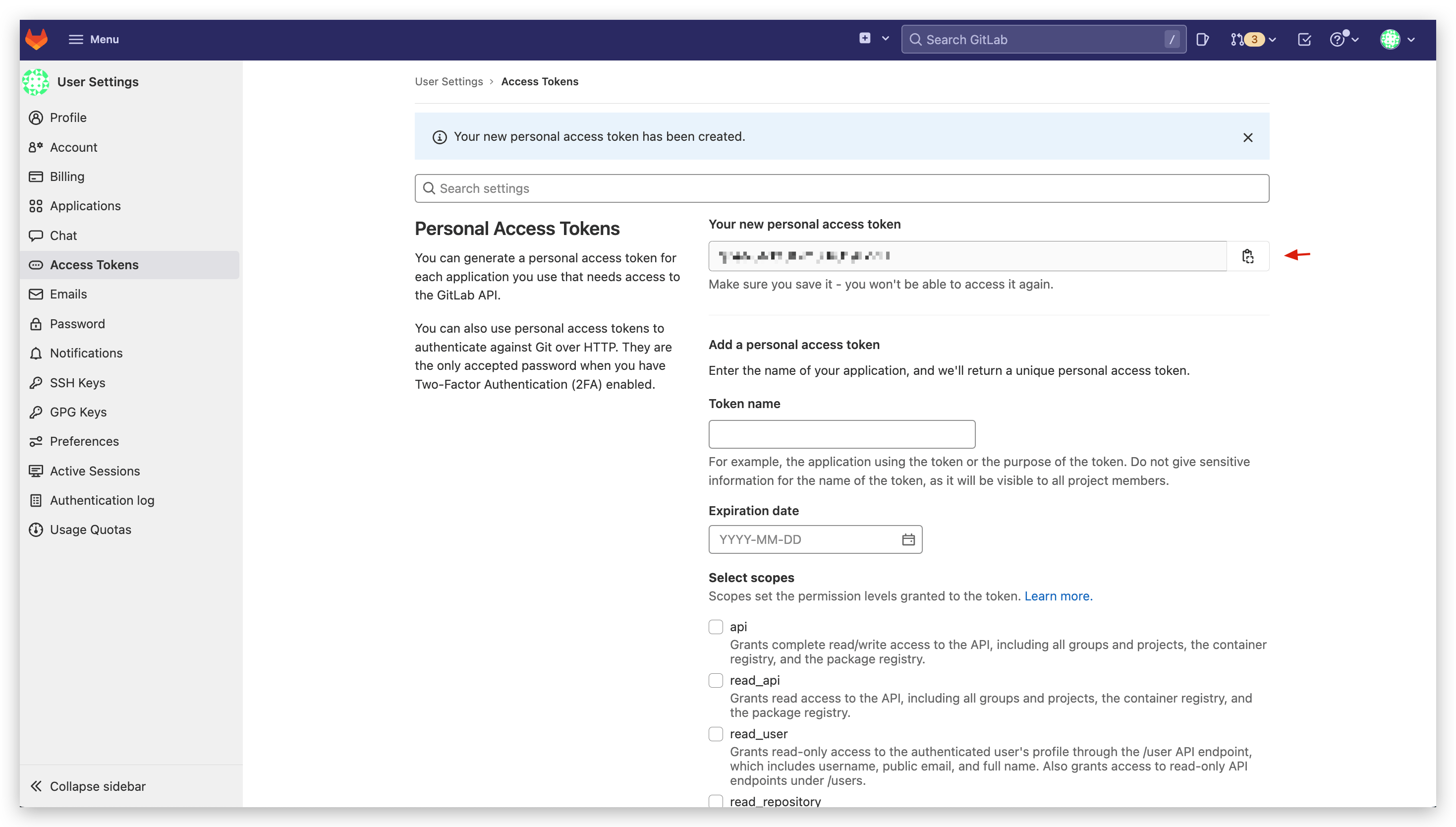
Configure the Access Token in the corresponding code source. The configuration process varies depending on the code source. Please refer to the official documentation of the corresponding code source. The following is an example using GitLab as the code source.
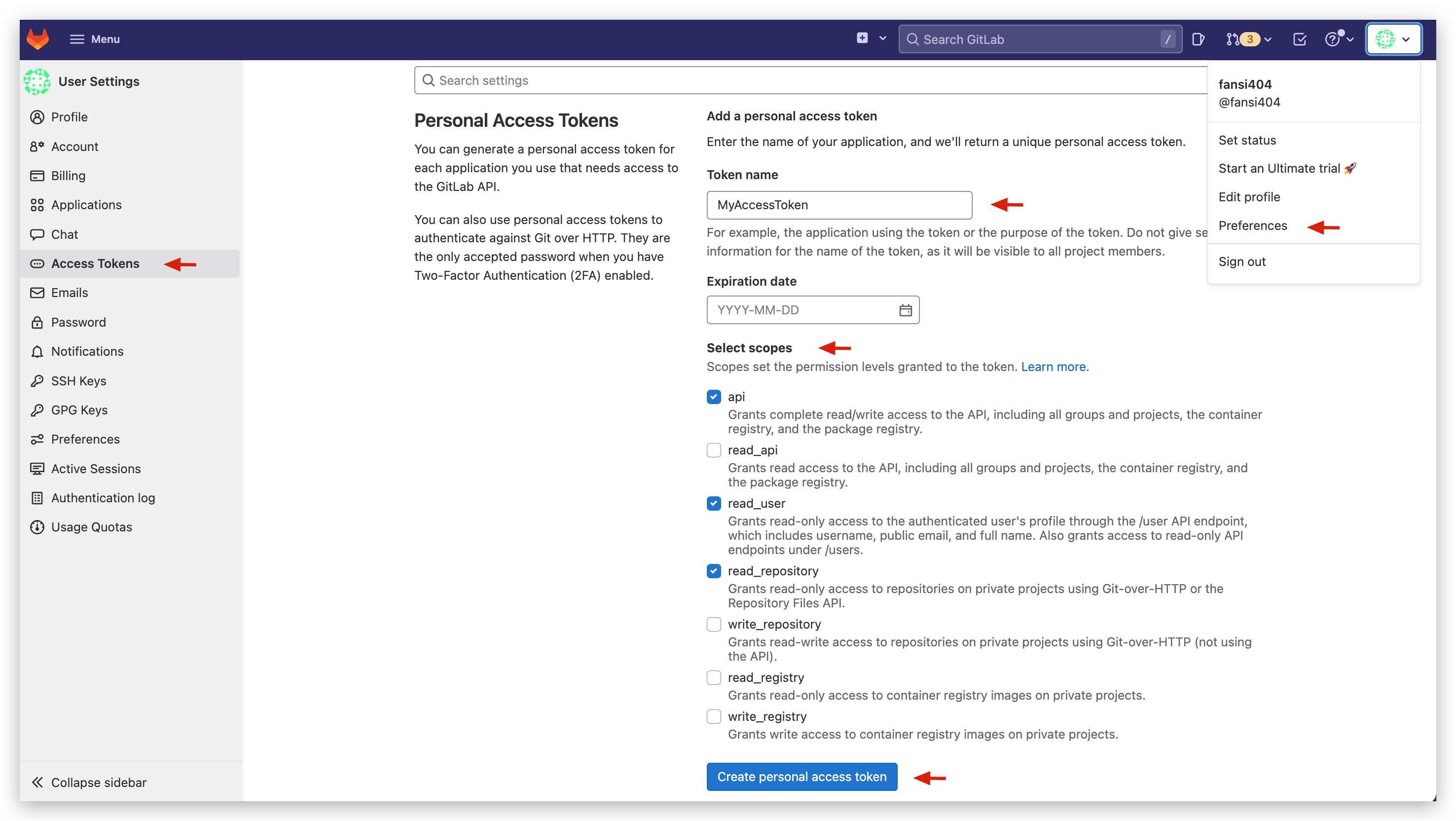
- After logging into GitLab, click on the avatar in the upper right corner ->
Preferences->Access Tokens, fill in the Token name, and checkapi,read_user,read_repositoryto generate the Access Token.
- Copy the generated Access Token information.
# Step 2: Enter the Configuration in the Zadig System
An administrator should log into the Zadig system and go to System Settings → Integration → Code Source → click the Add button.
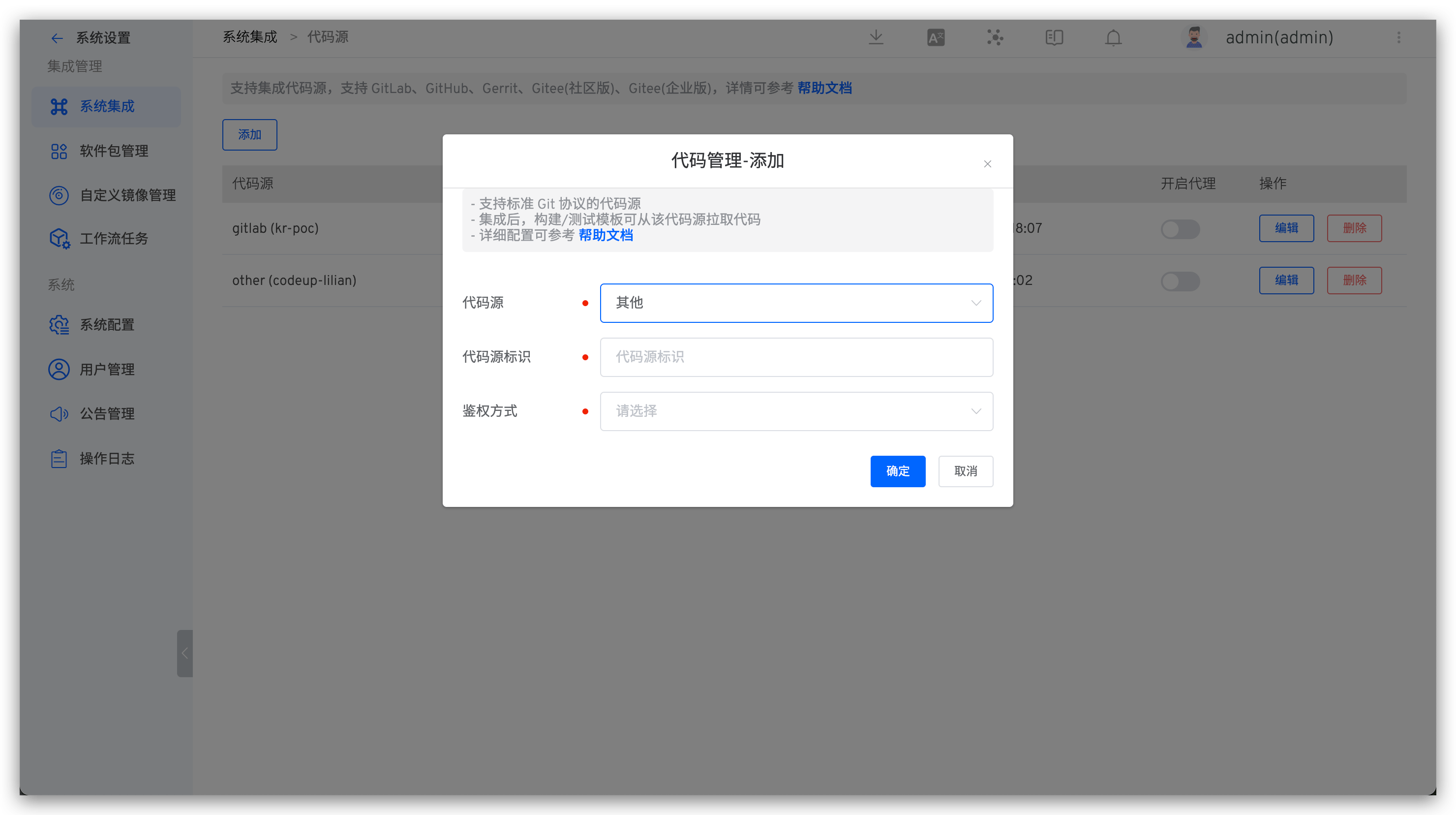
Fill in the following information in sequence:
Provider: SelectOtherAlias: Customize to help quickly identify the code source within the Zadig system. This information must be unique within the entire systemAuth Method: SelectAccess TokenProvider URL: Enter the corresponding code source address, such ashttps://gitlab.comAccess Token: The Access Token obtained in Step 1

